
DIY Network Troubleshooting: Quick Fixes for Common Issues


Identifying Basic Network Issues
When your network suddenly stops working, it can be incredibly frustrating. However, many network issues can be resolved with a few simple troubleshooting steps. The first step is to identify whether the problem is with your device, your router, or your internet service provider. This can save you a lot of time and effort.
Start by checking whether the issue affects all devices or just one. If it's only one device, the problem is likely with that device. If multiple devices are affected, the issue might be with the router or the internet connection itself.

Router and Modem Checks
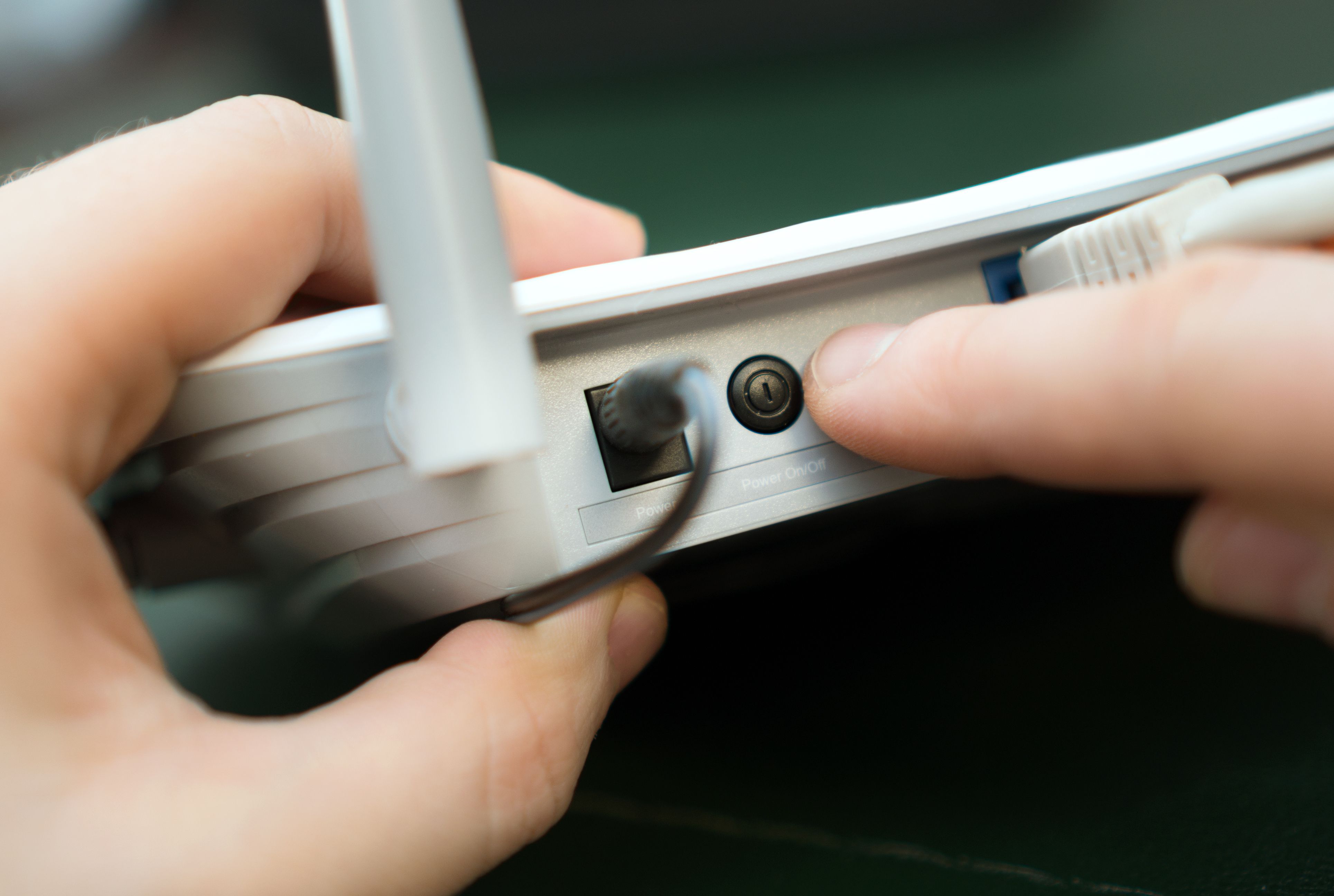
Once you've determined that the issue isn't isolated to a single device, it's time to check your router and modem. Ensure both are powered on and all cables are securely connected. Sometimes, simply unplugging the router and modem, waiting a few seconds, and plugging them back in can resolve connectivity issues.
If a restart doesn't work, check for any warning lights on the router or modem. Refer to your device's manual to understand what these lights indicate, as they can often point to the root cause of the problem.
Resetting the Router
If you're still experiencing issues, try resetting the router to its factory settings. This can resolve persistent issues but will also erase any custom settings you have applied, so use this as a last resort. To reset, locate the reset button on the router and hold it down for about ten seconds.
Checking Network Settings
If the hardware seems fine, the next step is to check your network settings. Ensure that your device is connected to the correct network and that the Wi-Fi is turned on. Sometimes, simple settings can be accidentally changed, leading to connectivity issues.
For wired connections, ensure that the Ethernet cable is properly connected to both the device and the router. Try using a different cable if necessary to rule out any potential cable damage.
IP and DNS Settings
Incorrect IP and DNS settings can also cause network problems. In most cases, setting these to automatically obtain settings from the network will solve the issue. You can find these settings in the network properties on your device. If problems persist, manually setting a public DNS, like Google's DNS (8.8.8.8), can sometimes help.

Interference and Signal Strength
Wi-Fi signal interference is another common issue. Devices like microwaves, cordless phones, and even neighboring networks can interfere with your Wi-Fi signal. Try changing the Wi-Fi channel on your router to minimize interference. Most routers have the option to select a channel automatically.
Additionally, ensure your router is placed in a central location, free from obstructions. Walls and large objects can significantly weaken Wi-Fi signals, leading to poor connectivity in certain areas of your home.
Advanced Troubleshooting
If these steps don't resolve the issue, it might be time to delve into more advanced troubleshooting. This could include updating the router's firmware, checking for rogue devices on your network, or even contacting your internet service provider for assistance.
While DIY troubleshooting can solve many issues, don't hesitate to seek professional help if necessary. A little expertise can go a long way in ensuring your network runs smoothly and efficiently.