
DIY Troubleshooting: Common Computer Network Issues and Solutions


In today's digital world, staying connected is more important than ever. However, encountering network issues can be frustrating. Understanding common computer network problems and how to troubleshoot them can save time and reduce stress. Below are some prevalent issues and simple solutions to help you get back online quickly.
Identifying Connectivity Issues
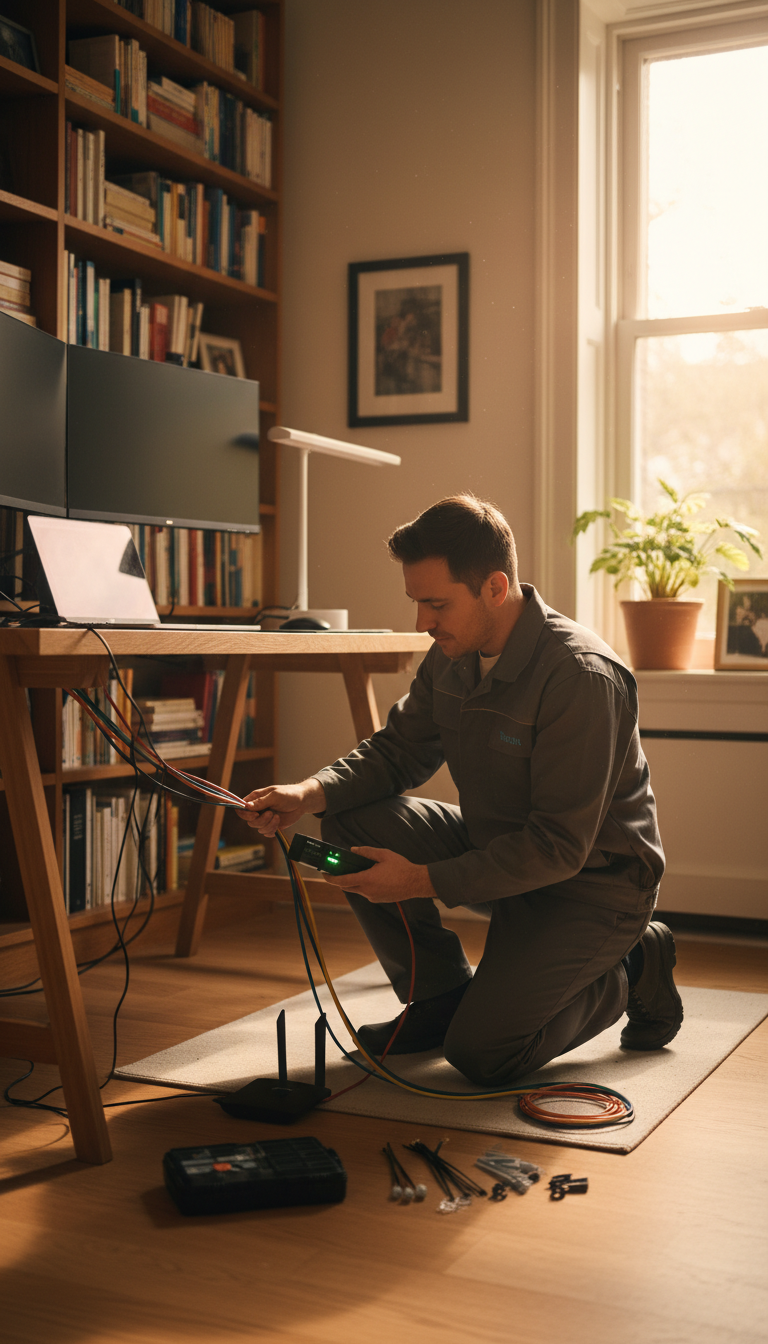
Check Physical Connections
Before diving into more complex solutions, start by examining the physical connections. Ensure all cables are securely plugged into the correct ports. If you’re using a wireless connection, make sure your Wi-Fi is enabled on your device. Sometimes, a simple reconnection can resolve the problem.
Restart Your Devices
One of the most effective troubleshooting methods is restarting your devices. Restart your modem and router by unplugging them, waiting about 30 seconds, and then plugging them back in. This can help refresh the network connection and resolve many common issues.
Troubleshooting Slow Internet Speeds
Check Your Bandwidth Usage
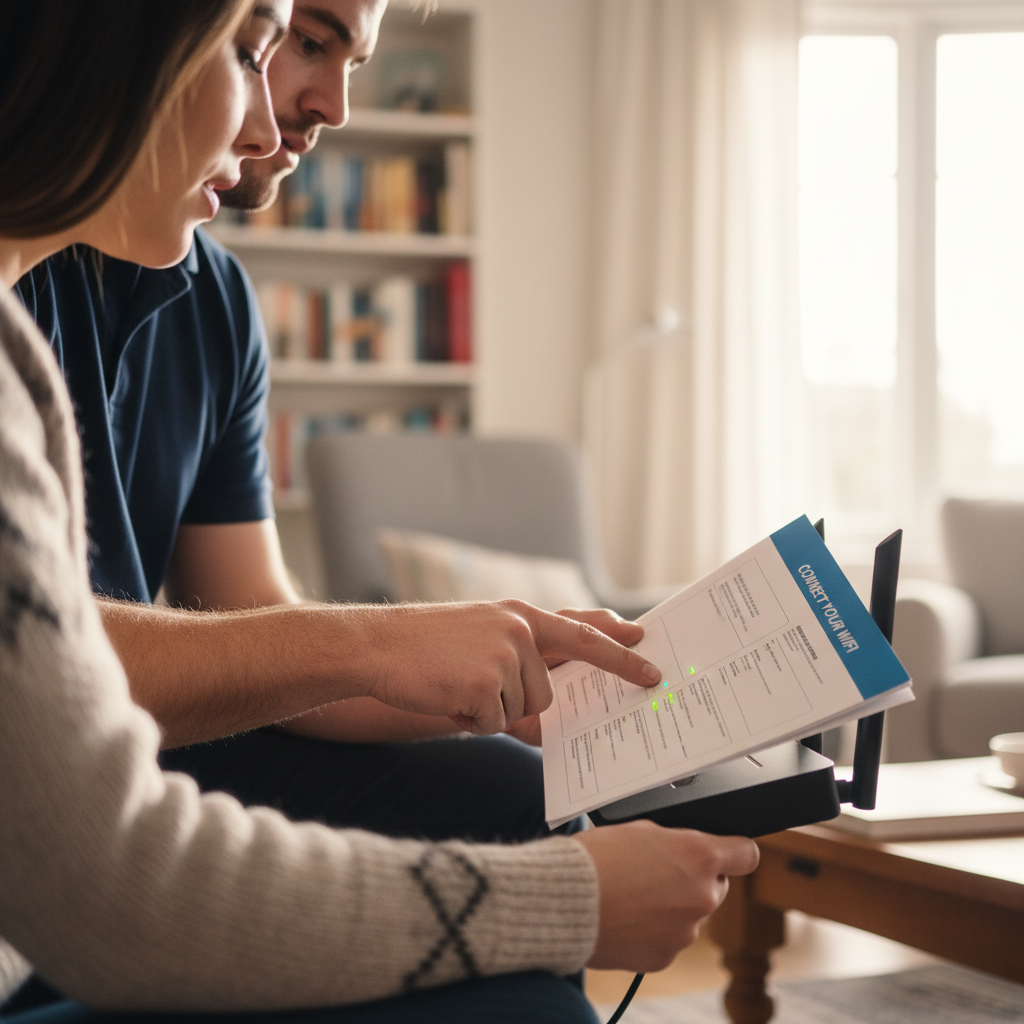
Slow internet speeds can be caused by high bandwidth usage. Check if there are any applications or devices consuming excessive bandwidth. Streaming, online gaming, and large downloads can all contribute to slow speeds. Try pausing these activities to see if your speed improves.
Update Your Router’s Firmware
Outdated firmware can lead to connectivity issues and slow speeds. Check your router’s manufacturer website for the latest firmware updates. Updating the firmware can enhance performance and stability.
Resolving IP Address Conflicts
Renew Your IP Address
IP address conflicts occur when two devices on the same network are assigned the same IP address. To resolve this, you can renew your IP address. On Windows, open Command Prompt and type ipconfig /release followed by ipconfig /renew. On a Mac, use the Terminal and type sudo ifconfig en0 down followed by sudo ifconfig en0 up.
Restart Your Router
Another way to resolve IP conflicts is by restarting your router. This can reset the network’s IP allocation, potentially resolving any conflicts automatically.
Dealing with Network Dropouts
Interference and Range
Wireless signals can be affected by physical obstructions and interference from other devices. Ensure your router is placed in a central location, free from obstructions. Avoid placing it near microwaves, cordless phones, or other electronic devices that can cause interference.
Change Your Wi-Fi Channel
Sometimes, overlapping Wi-Fi channels can cause connectivity issues. Access your router settings and change the Wi-Fi channel to one with less traffic. Channels 1, 6, and 11 are often recommended for minimal overlap.
By understanding these common network issues and their solutions, you can address many problems yourself without needing professional assistance. With these DIY troubleshooting tips, you’ll be better equipped to maintain a stable and efficient network connection.