
DIY Troubleshooting Tips for Common Computer Network Issues


Introduction to Network Troubleshooting
Computer network issues can be frustrating, especially when you're trying to meet a deadline or stream your favorite show. Fortunately, you don't always need to call in a professional. With a few DIY troubleshooting tips, you can often resolve common network issues on your own.
Check Your Physical Connections
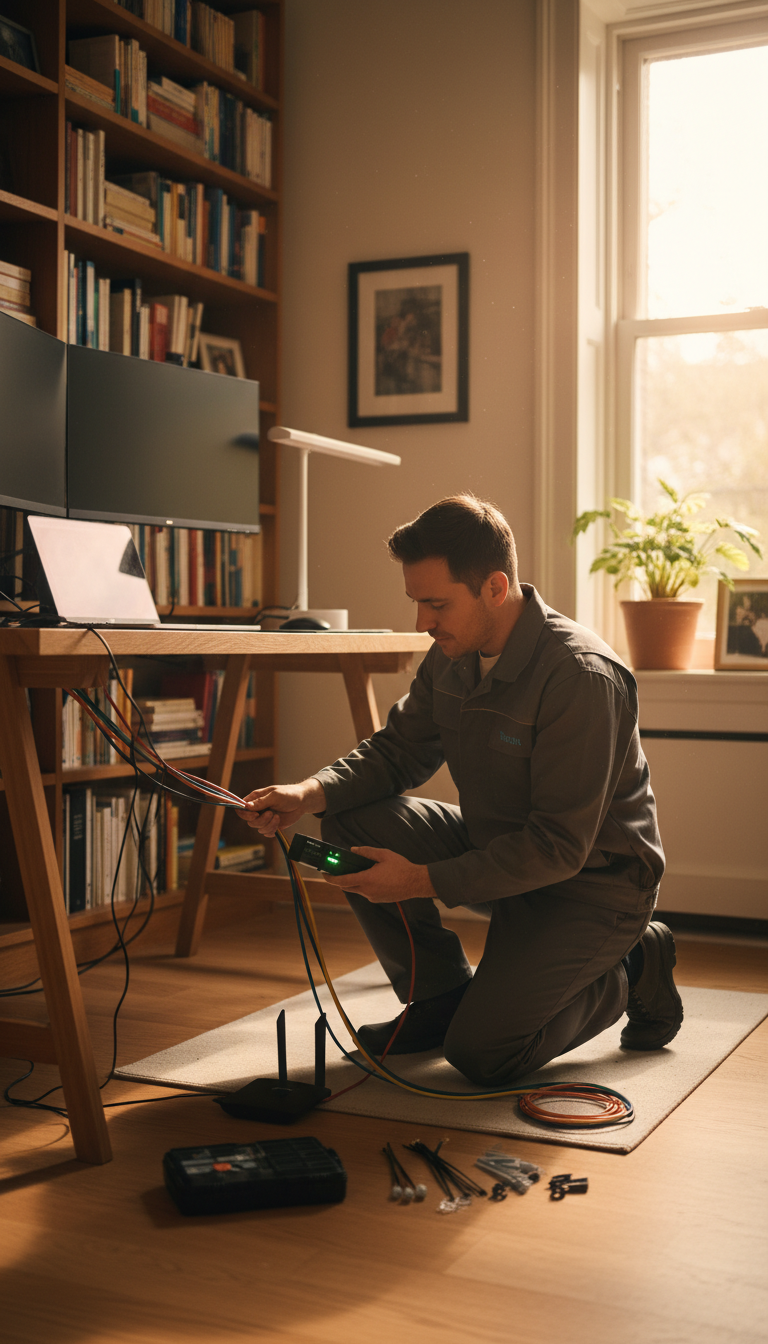
Before diving into complex troubleshooting, it's essential to check the basics. Ensure all cables are securely connected. A loose Ethernet cable can cause intermittent connectivity issues. Additionally, verify that your router and modem are plugged in and powered on. Sometimes, simply unplugging and replugging them can resolve the problem.
Inspect Your Network Devices
Check the status lights on your modem and router. These lights can indicate whether the device is functioning correctly. Refer to the user manual for your specific device to understand what each light signifies. If you see any unusual light patterns, it might be time for a reset.
Restart Your Equipment
A simple restart can work wonders. Turn off your modem and router, wait for about 30 seconds, and then turn them back on. This process, known as power cycling, can often resolve connectivity issues by refreshing your network settings.

Reboot Your Computer
If power cycling your network devices doesn't help, try restarting your computer. This can clear up any temporary software glitches that might be affecting your network connection. Ensure all your unsaved work is saved before rebooting.
Check for Interference
Wireless networks can suffer from interference due to various electronic devices such as microwaves, cordless phones, or even neighboring Wi-Fi networks. To mitigate this, try relocating your router to a central location away from other electronic devices. This can enhance the signal strength and reduce interference.
Change Your Wi-Fi Channel
If interference is still an issue, consider changing your Wi-Fi channel. Many routers operate on the same default channel, which can cause congestion. Access your router settings through a web browser and switch to a less crowded channel for improved performance.
Update Your Drivers and Firmware
Outdated drivers and firmware can lead to network issues. Regularly check for updates for your network adapter drivers and router firmware. Manufacturers often release updates to fix bugs and improve performance.
Run a Network Troubleshooter
Most operating systems come with built-in network troubleshooters. These tools can automatically detect and fix common network issues. Simply search for "Network Troubleshooter" on your computer and follow the prompts to resolve any detected problems.
Conclusion
By following these DIY troubleshooting tips, you can tackle many common computer network issues yourself. However, if problems persist, it may be time to consult a professional. Keeping your network equipment updated and regularly checking physical connections can help maintain a smooth and efficient network experience.